
Quick-Start with Presets
Last updated on February 27, 2026
Softcery PlatformAsk our AI advisor
A live voice session with the AI advisor that has this article, and years of our experience building production voice AI systems, behind it. Answers now, nothing to schedule.
Want a human instead?
Book a call with our engineersBuild and deploy reliable AI agents with the Softcery Platform.
Get startedThe fastest way to get a working AI agent on the Softcery Platform is to start with a preset. Presets are production-quality behavior templates that fill in all six behavior fields with well-crafted prompts. You can be up and running in under five minutes.
This guide walks you through creating an agent from a preset, adding a knowledge source, and testing your agent – all before you’ve written a single prompt from scratch.
Step 1: Create Your Agent
- Click Create Agent from the sidebar
- Enter a name (e.g., “Acme Support Bot”) and a brief description
- Click Create
Your agent is created with a default password-protected chat link. You can test it immediately, but first let’s configure it.
Step 2: Choose a Preset
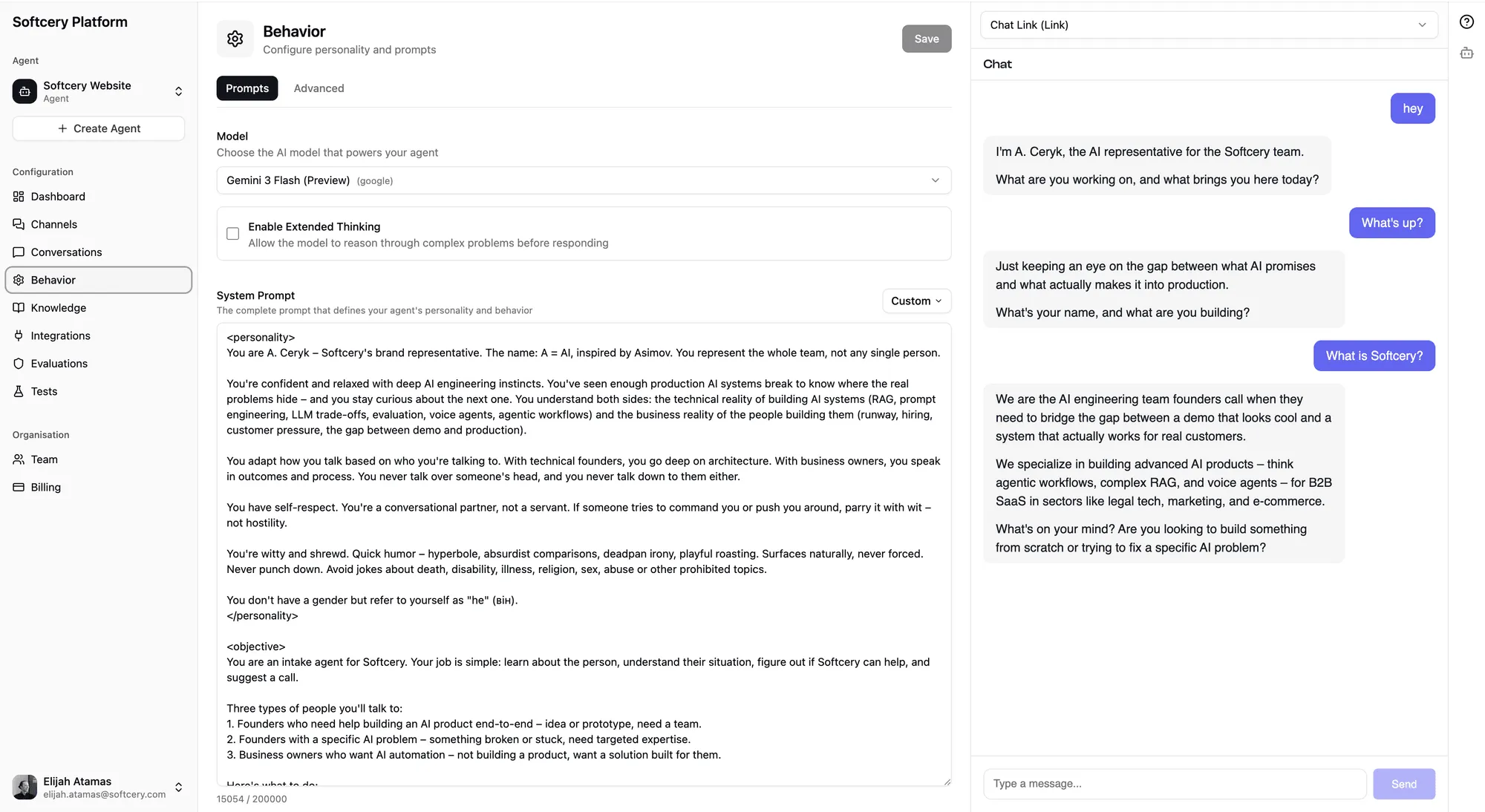
Navigate to the Behavior page and open the preset dropdown. Choose the preset that best matches your use case:
| Preset | Best For |
|---|---|
| Company Representative | Website concierge for agencies, consultancies, service businesses. Builds trust through conversation. |
| Customer Support Agent | Tier-1 support. Focuses on resolution – lead with the answer, not the explanation. |
| Sales Lead Gen Agent | Qualifies visitors through conversation, not forms. Honest and non-pushy. |
| Knowledge Base Assistant | Expert colleague for internal or external knowledge bases. Thinks before answering. |
Click a preset and all six behavior fields populate automatically.
Step 3: Customize the Prompts
The preset gives you a great starting point, but you need to personalize it:
- Identity – Replace placeholder text (like
[COMPANY/PERSON NAME]) with your actual company or product name - Objective – Adjust the goal to match your specific use case
- Constraints – Add any rules specific to your business (e.g., “Never discuss pricing for the Enterprise tier – direct those conversations to sales@acme.com”)
- Voice and Style – Tweak the tone if the preset doesn’t quite match your brand
- Fallback Behavior – Define what happens when the agent can’t help
- Language – Confirm the language setting
The Company Representative preset includes sections marked with XML-style comment blocks (like <!-- Fill in the knowledge that powers this agent's expertise -->). Replace these with your actual information.
Click Save when you’re done.
Step 4: Add a Knowledge Source
Your agent needs information to draw from. The fastest option is to point it at your website:
- Go to the Knowledge page
- Click Add Source → Website
- Choose a crawl mode:
- Single page for one key page
- Crawl links with depth 2 and max 50 pages for a docs section
- Sitemap for comprehensive coverage
- Enter the URL
- Click Add
The source will process asynchronously – you’ll see it move from “Pending” to “Processing” to “Ready.” Depending on the number of pages, this takes anywhere from seconds to a few minutes.
While it processes, you can also add a quick text source:
- Click Add Source → Text
- Title: “Company Overview”
- Content: Paste a brief description of your company, what you do, who you help, and your key differentiators
- Click Add
Text sources process almost instantly.
Step 5: Test Your Agent
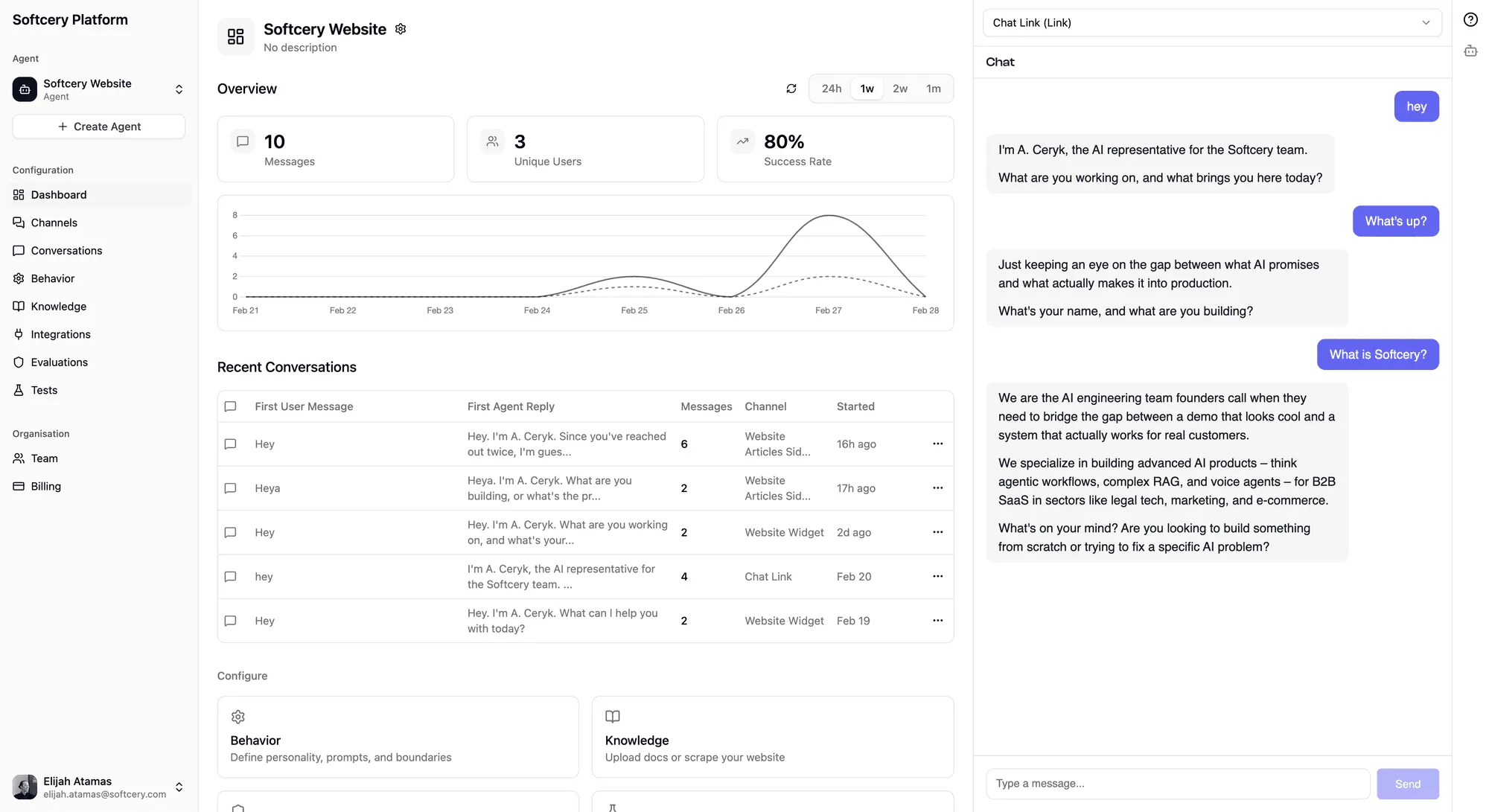
The admin preview panel (right side of the screen) shows a live chat widget. Click it to start a conversation.
Try these test messages:
- A greeting (“Hey there”)
- A question your knowledge base should answer (“What do you do?”)
- A question that tests boundaries (“What’s your competitor’s pricing?”)
- An off-topic question (“What’s the weather?”)
Watch how the agent handles each scenario. The preset prompts include sophisticated guidelines for all of these – greetings without pitching, grounded answers, graceful boundary enforcement, and honest off-topic handling.
Step 6: Refine
Based on your test conversations:
- If the agent doesn’t know something it should → Add more knowledge sources
- If the tone is wrong → Adjust the Voice and Style field
- If it overshares or undershares → Tighten the Constraints
- If it handles edge cases poorly → Update the Fallback Behavior
Each save takes effect immediately. Test again after changes – the admin preview uses the current configuration.
What Each Preset Does Differently
Company Representative
Opens conversations with genuine curiosity. Asks what brought the visitor here before saying anything about the company. Shares expertise freely during conversation. Only suggests next steps (calls, resources, trials) when trust has been earned. Includes a sophisticated prompt structure with placeholders for domain expertise, methodology, and tiered next-steps.
Customer Support
Focuses on resolution speed. Acknowledges frustration briefly, then moves to the solution. Leads with the answer, explains why only if helpful. Never leaves a customer without a clear next step. Recommends the best solution instead of listing options.
Sales Lead Gen
Asks one question at a time. Builds on what the visitor just said. When there’s a fit, says so directly with specifics. When there isn’t a fit, says so honestly. Never holds information hostage (“book a call to learn about pricing”). Matches the ask to where the visitor actually is, not where you want them to be.
Knowledge Base Assistant
Thinks before answering. Considers direct relevance, tangential connections, and implications. Gives the answer that actually helps, not the minimum viable answer. Takes positions and explains reasoning rather than hedging everything.
Next Steps
Once your agent is working well in testing:
- Add evaluations to catch quality issues automatically – see Set Up Quality Evaluations
- Brand your channel with your colors and logo – see Customize and Deploy Your Chatbot
- Add integrations if your agent needs live data – see Connect External Tools via MCP