
Connect External Tools via MCP
Last updated on February 27, 2026
Softcery PlatformAsk our AI advisor
A live voice session with the AI advisor that has this article, and years of our experience building production voice AI systems, behind it. Answers now, nothing to schedule.
Want a human instead?
Book a call with our engineersBuild and deploy reliable AI agents with the Softcery Platform.
Get startedYour agent’s knowledge base covers what it knows. MCP integrations in the Softcery Platform cover what it can do. By connecting external tools, your agent can look up live data, search the web, interact with your CRM, and pull real-time information during conversations.
This guide walks through connecting your first MCP integration – from the gallery and from scratch.
Connect from the Gallery
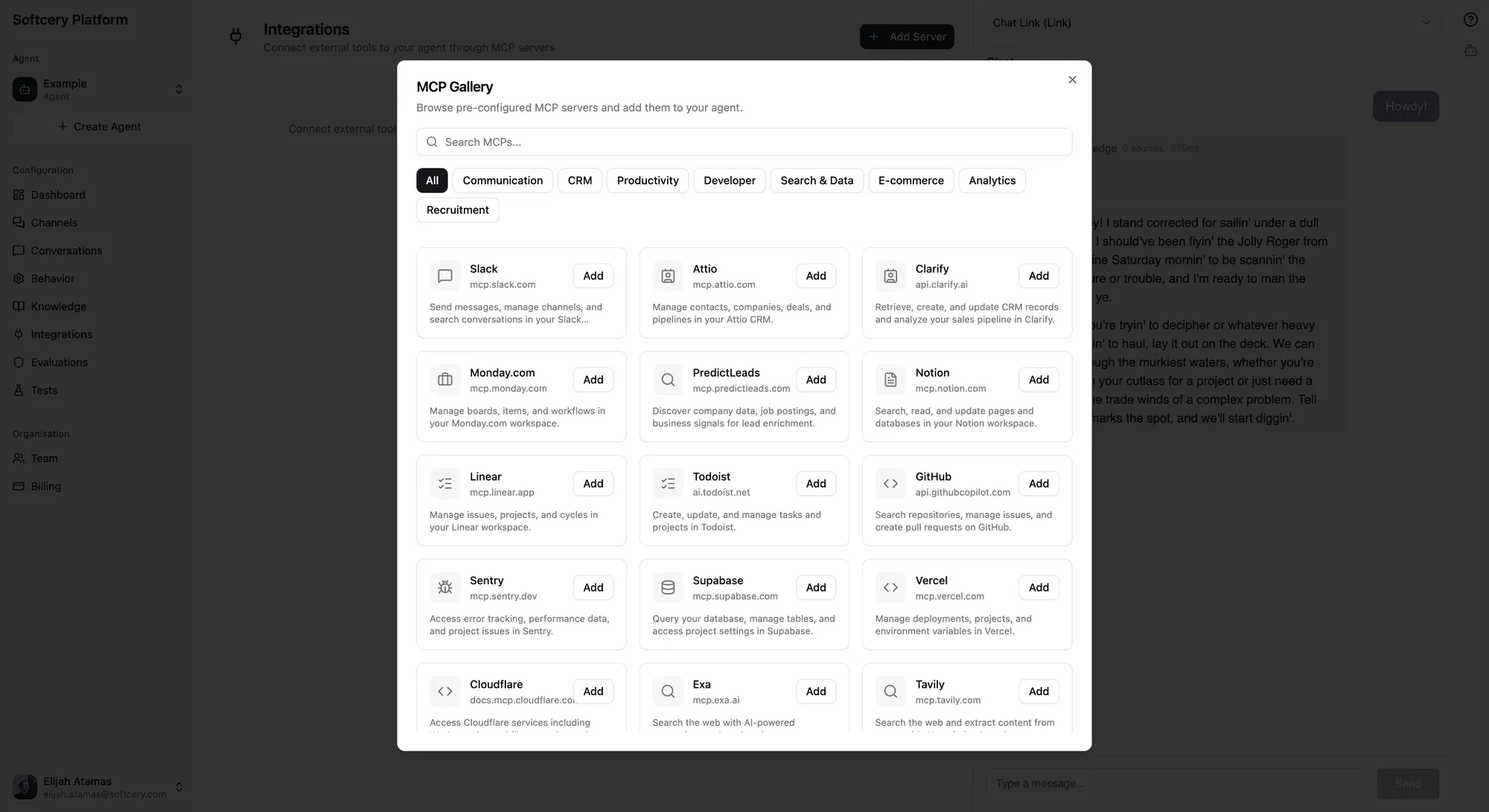
The fastest way. The gallery has 25+ pre-configured integrations with URLs, auth types, and setup instructions ready to go.
Example: Connect Tavily (Web Search)
Give your agent the ability to search the web for current information.
- Go to Integrations
- Click Browse Gallery
- Find Tavily in the Search & Data category (or use the search bar)
- Click Add
- The modal opens with pre-filled configuration:
- Name: Tavily
- URL:
https://mcp.tavily.com/mcp - Auth Type: API Key
- Setup instructions visible
- Get your API key from tavily.com (free tier available)
- Paste your API key
- Click Create
The platform automatically probes the server to discover available tools. Within seconds, you’ll see the tool count and a “Connected” status.
Your agent can now search the web during conversations. Ask it something your knowledge base doesn’t cover – it’ll use Tavily to find the answer.
Example: Connect Notion (OAuth)
Give your agent access to your Notion workspace.
- Go to Integrations → Browse Gallery
- Find Notion in the Productivity category
- Click Add – configuration is pre-filled
- Click Create
- Click the Connect button to start the OAuth flow
- You’re redirected to Notion to authorize access
- Grant the permissions and you’re redirected back
- The platform exchanges the auth code for tokens and probes for tools
Done. Your agent can now search, read, and update Notion pages during conversations.
Example: Connect Slack (OAuth with Custom App)
Slack requires a few more steps because you need to create a custom OAuth app.
- Go to Integrations → Browse Gallery
- Find Slack in the Communication category
- Click Add – note the setup instructions that appear
The instructions walk you through:
- Go to api.slack.com/apps → Create New App → From Scratch
- Name it and select your workspace
- Under OAuth & Permissions, add the redirect URL shown in the platform
- Add the suggested User Token Scopes (search:read.public, chat:write, channels:history, groups:history, users:read)
- Copy the Client ID and Client Secret from Basic Information
- Back in the platform, expand the Advanced section and paste the credentials
- Click Create, then Connect to start the OAuth flow
- Authorize in Slack and you’re connected
Note: Slack MCP uses user tokens – messages sent through the agent will appear as sent by you, not by a bot.
Connect a Manual MCP Server
For servers not in the gallery – custom servers, internal tools, or community MCP servers.
- Go to Integrations
- Click Add MCP
- Fill in:
- Name – A descriptive name
- URL – The server’s HTTPS endpoint (HTTP not supported)
- Auth Type – API Key or OAuth
- For API Key: enter the key in the authentication field
- For OAuth: configure the callback URL, optional client credentials, and scopes
- Click Create
The platform probes the server after creation. If tools are discovered, you’re connected. If not, check the server URL and authentication.
How Your Agent Uses Tools
Once connected, your agent has access to the tools provided by each MCP server. Here’s what happens during a conversation:
- User asks a question
- The agent receives the question plus a list of all available tools from connected servers
- The model decides whether any tools would help answer the question
- If yes, the agent calls the tool(s) – potentially multiple in parallel
- Tool results are incorporated into the response
- The agent may make additional tool calls if the first results warrant follow-up
You don’t need to configure which tools to use for which questions. The AI model figures that out based on the tool descriptions and the user’s question.
Example Conversation Flow
User: “What’s the status of the Acme project in Linear?”
- Agent recognizes this needs live data from Linear
- Calls Linear’s search tool with the query “Acme project”
- Receives project status, open issues, and recent updates
- Composes a response using the tool results and conversation context
All of this is visible in the conversation inspection panel under Iterations – you can see exactly which tools were called, with what arguments, and what they returned.
Managing Your Integrations
Enable/Disable
Toggle any integration on or off from the integrations table. Disabled integrations retain their configuration but their tools aren’t available to the agent.
Use this to A/B test whether an integration improves responses, or to temporarily disable an integration that’s misbehaving.
Probe
Click Probe to re-discover tools from a connected server. Use this after the server has been updated with new tools, or to diagnose connection issues.
Reconnect (OAuth)
If an OAuth integration stops working (expired tokens, revoked access), click Reconnect to re-initiate the authorization flow. The platform will get fresh tokens and probe for tools again.
Status Indicators
- Connected (green) – Tools discovered, everything working
- Error (red) – Connection or authentication problem
- Untested (gray) – Not yet probed
Which Integrations to Add
Think about what your users ask that your knowledge base can’t answer:
| User Need | Integration |
|---|---|
| ”What’s the latest on X?” | Tavily or Exa (web search) |
| “Check my project status” | Linear or Monday.com |
| ”Look up this customer” | Attio or Clarify (CRM) |
| “Find this in our docs” | Notion |
| ”What are the open issues?” | GitHub or Sentry |
| ”Check our analytics” | PostHog or Amplitude |
| ”Show me payment details” | Stripe or PayPal |
Start with one or two integrations that address the most common knowledge gaps, then add more as needed.
Tips
- Test after connecting. Ask your agent a question that requires the integration. Check the inspection panel to verify the tool was called correctly and returned useful results.
- Less is more. Two or three focused integrations outperform ten unfocused ones. Too many tools can confuse the model about which to use.
- Check tool counts. After connection, the integrations table shows how many tools each server provides. This gives you a sense of what capabilities each integration adds.
- OAuth tokens refresh automatically. The platform refreshes OAuth tokens before they expire (at 50% lifetime). You shouldn’t need to reconnect unless you revoke access on the service side.
- Read the setup instructions. Gallery entries with setup instructions (highlighted with expandable sections) have them for a reason – OAuth apps, API key locations, and URL customization are covered there.
- Private URLs are blocked. For security, MCP server URLs pointing to private IP ranges are rejected. This is intentional SSRF protection.