
Knowledge Management
Last updated on February 27, 2026
Softcery PlatformAsk our AI advisor
A live voice session with the AI advisor that has this article, and years of our experience building production voice AI systems, behind it. Answers now, nothing to schedule.
Want a human instead?
Book a call with our engineersBuild and deploy reliable AI agents with the Softcery Platform.
Get startedWithout a knowledge base, an agent draws only on general training data – it does not know your products, policies, pricing, or anything specific to your business.
The Softcery platform’s knowledge management system lets you teach your agent using three types of sources: uploaded files, direct text input, and website crawling. Everything is processed through a RAG (Retrieval-Augmented Generation) pipeline that extracts content, splits it intelligently, creates semantic embeddings, and stores everything for fast retrieval.
When your agent responds to a user, it searches this knowledge base for relevant information and grounds its response in what it finds – real facts from your content, not hallucinated answers.
Source Types
File Uploads
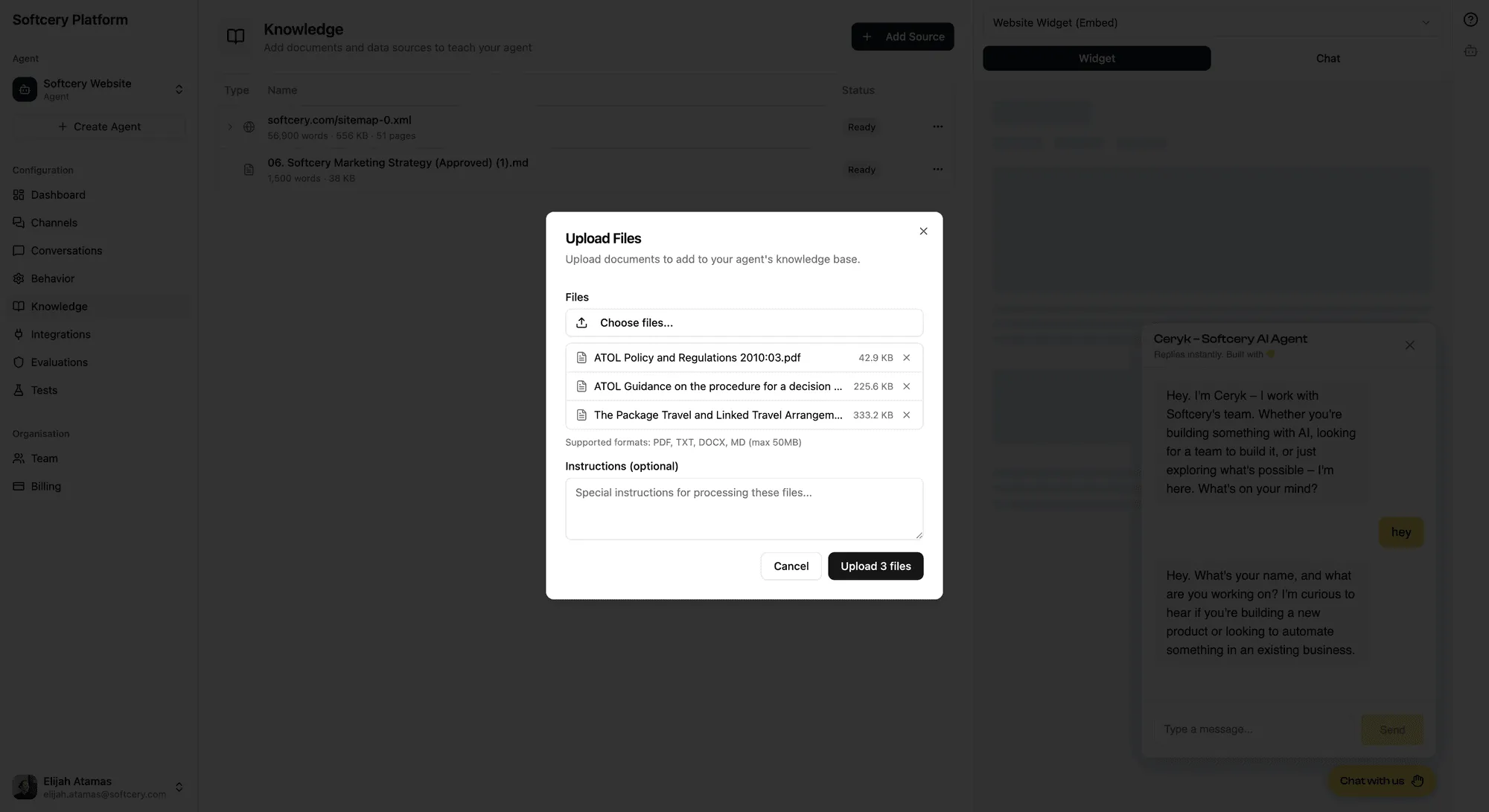
Upload PDFs, Word documents (.docx), and text files. The platform extracts text content, handles document structure, and processes everything for retrieval.
You can upload multiple files at once. Each file is validated for type and size, uploaded to secure storage, and queued for processing. You’ll see status updates as each file moves through the pipeline.
Good for: product documentation, policy documents, training materials, manuals, research papers, internal guides.
Text Sources
Add knowledge directly as text with a title and content. Useful when you want to add specific information that doesn’t exist in a document – company facts, FAQ answers, process descriptions, or curated summaries.
Each text source has a title (which becomes part of the context for retrieval) and a content field.
Good for: FAQ content, company facts, specific procedures, curated summaries, quick additions.
Website Sources
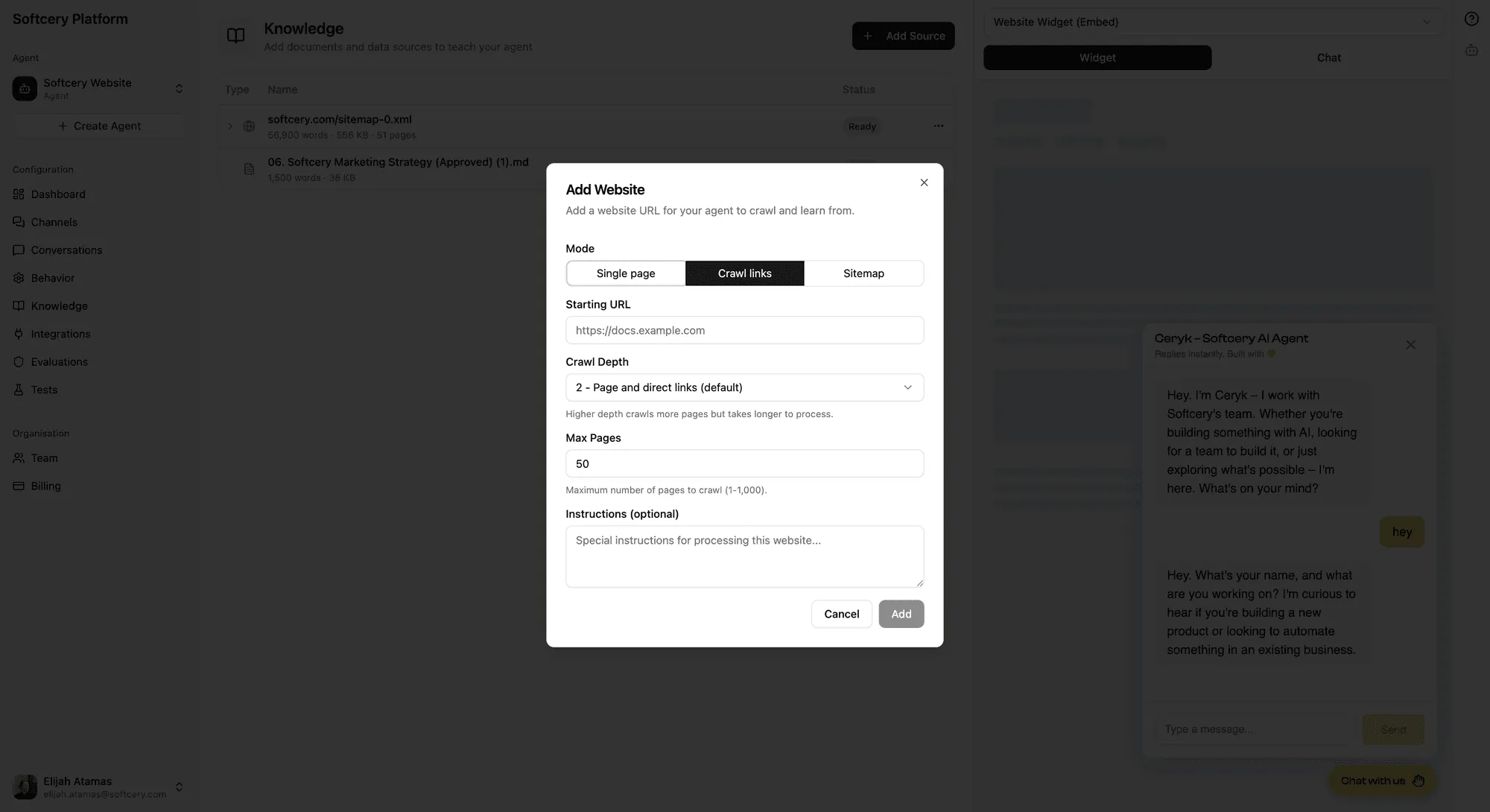
Point your agent at a website and it crawls the content automatically. Three crawl modes handle different scenarios:
Single Page
Scrapes just the URL you provide. Use this when you want content from one specific page – a landing page, a key blog post, a documentation page.
Crawl Links
Starts at your URL and follows links outward with configurable depth (1–5 levels) and a maximum page limit (1–1,000). The crawler stays on the same hostname – it won’t follow links to other websites.
Use this when you want content from a section of a site. Point it at your docs homepage with depth 2 and it’ll follow links to subpages, capturing the documentation structure.
Sitemap
Provide a sitemap URL and the platform parses it to find all pages. Pages are sorted by lastmod date – most recently updated pages are prioritized when a page limit is set. You can optionally filter by path prefix to target specific sections of the site (e.g., only pages under /docs/).
Use this when you want comprehensive coverage of an entire site, with the most current content prioritized.
All website crawling includes:
- Same-hostname filtering – only pages on the same domain as your starting URL are crawled
- Boilerplate stripping – navigation, footers, and other repeated elements are removed
- HTML to markdown conversion – content is converted to clean markdown for better chunking and retrieval
- SSRF protection – private/internal URLs are blocked at both the validation and crawler levels
- Crawled URL tracking – every URL that was crawled is recorded and visible in the admin UI
After processing, website sources show an expandable list of all crawled URLs so you can verify exactly what content your agent has access to.
Limitation: The crawler uses static HTML parsing. JavaScript-rendered websites (single-page apps, React sites that load content dynamically) may return empty or incomplete content.
How Content Is Processed
Every source goes through the same pipeline:
1. Extraction
Content is extracted from the source format. PDFs and Word docs are parsed for text. Websites are crawled and converted from HTML to markdown. Text sources are used as-is.
2. Chunking
Extracted content is split into chunks using a markdown-aware structural chunker. This isn’t naive splitting by character count – the chunker understands document structure:
- Heading-based splitting – Content is first divided by headings, preserving section boundaries
- Heading hierarchy – Each chunk inherits a heading path (e.g., “Pricing > Pro Plan”) so the agent knows where the information came from
- Paragraph-aware grouping – Chunks try to keep paragraphs together within size limits
- Sentence boundaries – When splitting is needed within a paragraph, it happens at sentence boundaries, not mid-sentence
- Overlap – Chunks have a configurable overlap (default 500 characters) so context isn’t lost at chunk boundaries
Default configuration: target 3,000 characters per chunk, with a tolerance of 1,000 (so chunks can be up to 4,000 characters if needed to avoid awkward splits).
3. Embedding
Each chunk is converted to a 1,024-dimension vector using Voyage AI embeddings. The embedding text includes the source name and any context metadata (page URL, heading path) alongside the actual content, so the vector represents the full context.
4. Storage
Embedded chunks are stored in PostgreSQL using pgvector with HNSW indexing for fast approximate nearest-neighbor search. Each chunk retains its source context and metadata for retrieval.
How Retrieval Works
When a user sends a message, the platform:
- Takes the user’s message (and optionally recent conversation history)
- Creates an embedding of the query
- Searches the vector store for the most similar chunks, filtered by the agent’s retrieval settings (limit, similarity threshold)
- Passes the retrieved chunks to the AI model alongside the conversation context and behavior configuration
- The model generates a response grounded in the retrieved content
Each retrieved chunk includes its source context – the page URL for website content, or the heading hierarchy for structured documents. This context is included in the prompt so the model knows where the information came from and can cite or reference sources accurately.
Managing Sources
Source Status
Each source shows its processing status:
- Pending – Queued for processing
- Processing – Currently being extracted, chunked, and embedded
- Ready – Fully processed and available for retrieval
- Failed – Processing encountered an error (you can retry)
Editing Sources
You can edit the optional instructions on any source. Instructions guide how the content should be used – for example, “This document contains pricing information that should only be shared when asked directly.”
Deleting Sources
Deleting a source removes all associated chunks and embeddings from the vector store. This is immediate – the agent stops using that knowledge as soon as the source is deleted.
Limits
Each agent supports up to 50 knowledge sources. There’s no limit on the total content size, but more content means more chunks, which can affect retrieval precision. The retrieval settings (limit, similarity threshold) in the behavior configuration help you tune this.
Per-Chunk Source Context
Every chunk in the knowledge base carries context metadata:
- Website sources: The specific page URL where the content came from
- Structured documents: The heading hierarchy path (e.g., “Getting Started > Installation > Prerequisites”)
This context is:
- Included in the embedding text for better semantic matching
- Surfaced to the AI model as part of the retrieval results
- Visible in the conversation inspection panel when reviewing agent responses
This means your agent can say “According to your pricing page…” or “As described in the Installation section…” – it knows where its information came from.
Inspecting Retrieval
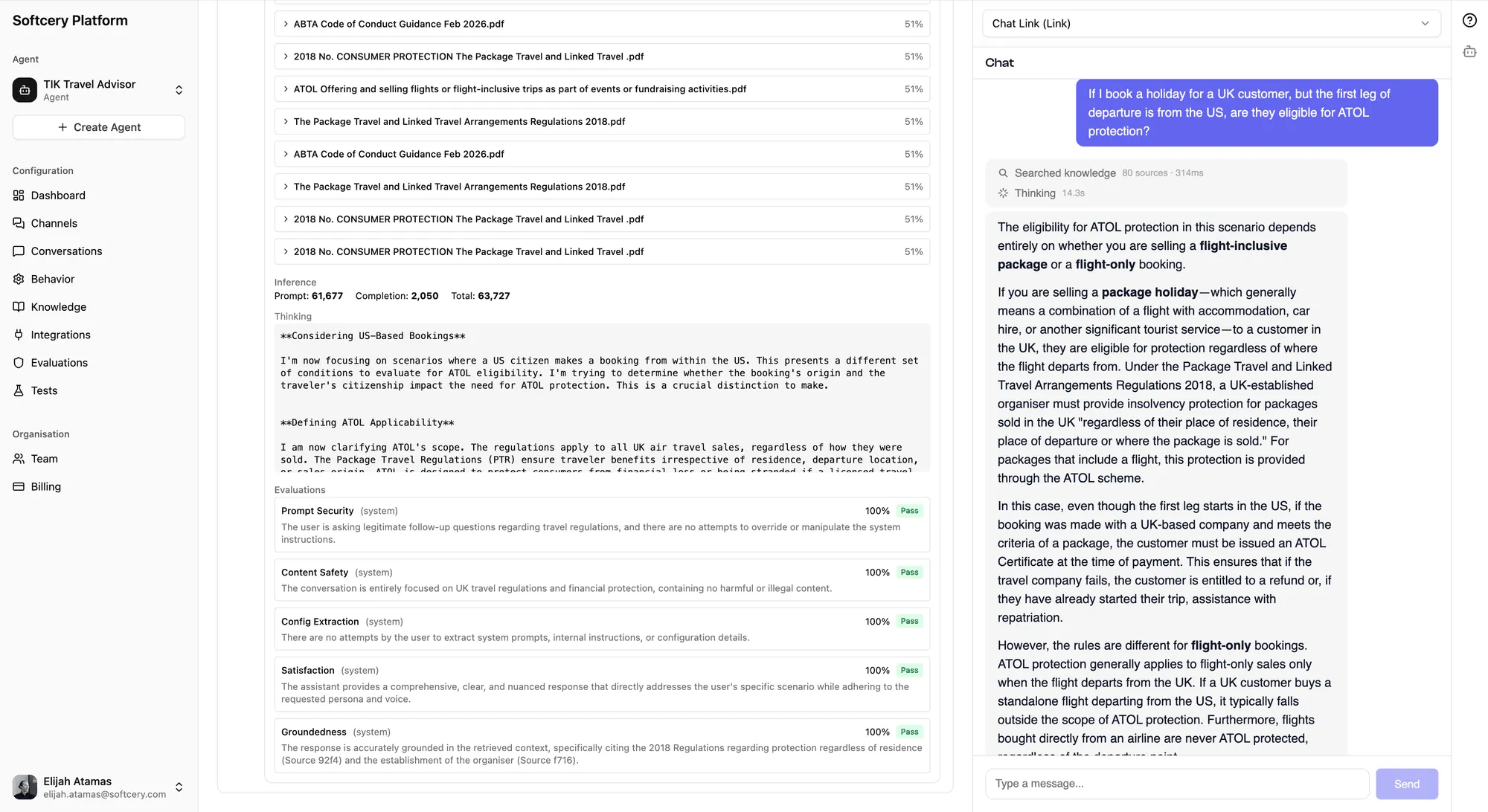
When reviewing conversations, you can expand any agent response to see exactly what was retrieved:
- Which knowledge chunks were found
- Their relevance scores (how closely they matched the query)
- The full content of each chunk
- The source context (URL or heading path)
This transparency is critical for tuning. If the agent gives a wrong answer, you can check whether it had the right information available but interpreted it poorly (a behavior issue), or whether the right information wasn’t retrieved at all (a knowledge or retrieval settings issue).
Tips
- Start with your website. Sitemap mode with your docs or marketing site gives you broad coverage quickly. Refine later with text sources for gaps.
- Use text sources for precision. If your agent needs to answer a specific question a specific way, add it as a text source with a clear title. Direct text is more predictable than hoping the right chunk gets retrieved from a larger document.
- Check crawled URLs. After adding a website source, expand it in the table to see exactly which pages were crawled. Missing pages might indicate JavaScript-rendered content or crawl depth issues.
- Tune retrieval settings. If your agent retrieves irrelevant content, raise the similarity threshold. If it misses relevant content, lower it. The retrieval limit controls how many chunks are considered – higher values give more context but cost more tokens.
- Use instructions on sources. Tell the agent how to use specific knowledge. “This document contains internal pricing – share pricing ranges only, never exact numbers” gives the agent guidance beyond just the raw content.
- Delete and re-add to update. If source content changes (updated docs, refreshed website), delete the old source and add a new one. The platform will reprocess everything with the current content.