
Channels and Deployment
Last updated on February 27, 2026
Softcery PlatformAsk our AI advisor
A live voice session with the AI advisor that has this article, and years of our experience building production voice AI systems, behind it. Answers now, nothing to schedule.
Want a human instead?
Book a call with our engineersBuild and deploy reliable AI agents with the Softcery Platform.
Get startedAn agent creates value when it reaches users. Channels control how and where that happens.
In the Softcery Platform, channels are how your agent reaches users. Each channel is a separate deployment point with its own branding, settings, and access controls. You can have up to 20 channels per agent – each configured independently.
Channel Types
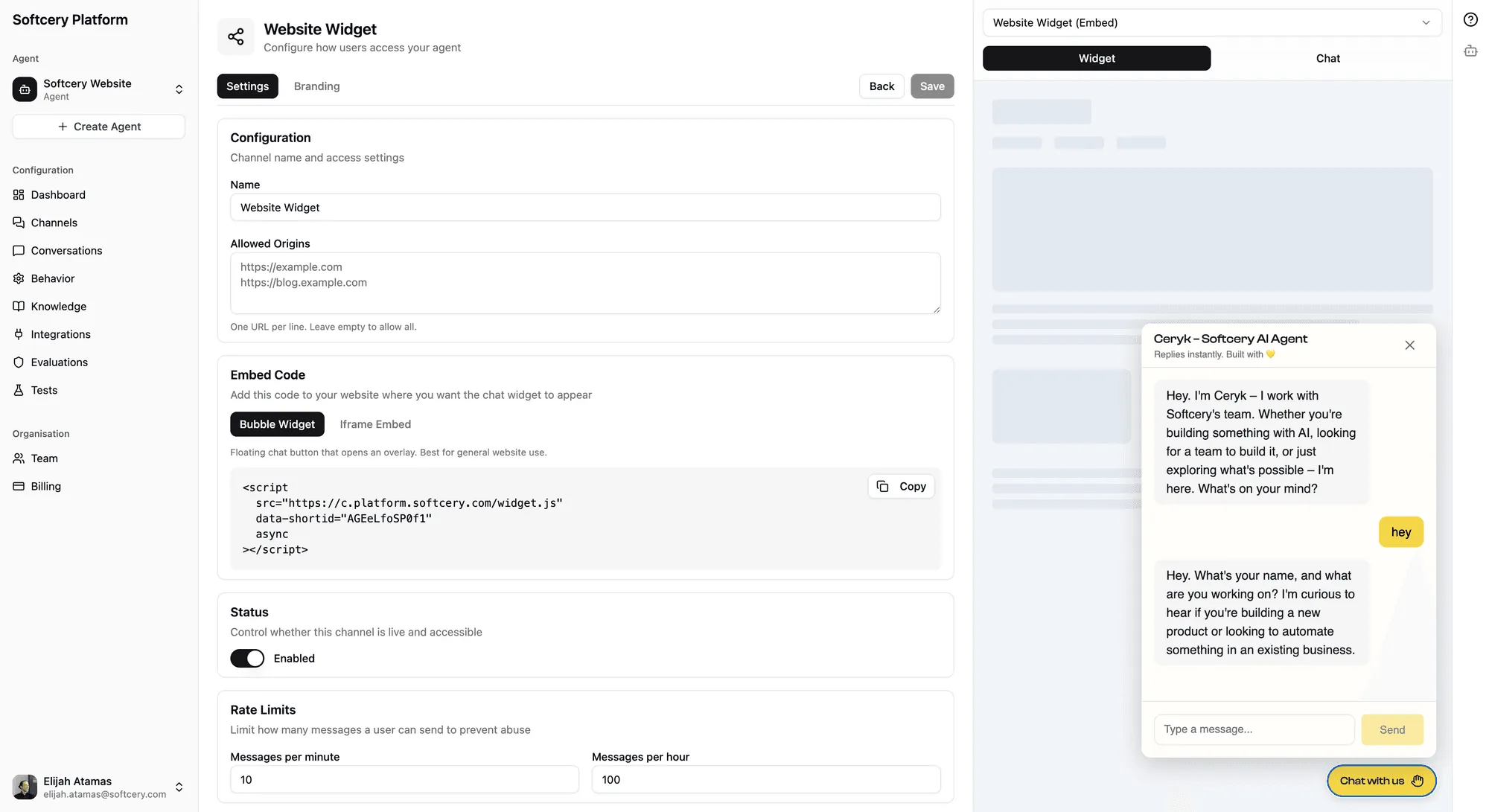
Embed
An iframe widget you can place on any website. Visitors see a chat bubble that opens a conversation panel when clicked.
The embed channel gives you an install snippet – a small piece of JavaScript that loads the widget on your page. Add it to your site’s HTML and the chat widget appears automatically.
Embed channels support an allowed origins list for CORS protection. Only websites on the allowlist can load your widget.
Link
A shareable URL that opens a standalone chat page. No website needed – send the link directly to users, post it in emails, share it on social media, or use it for internal tools.
Link channels can be password-protected. When enabled, users must enter a password before they can start chatting. This is useful for internal agents, beta testing, or limiting access to specific audiences.
Each agent comes with a default link channel that’s password-protected with an auto-generated 12-character password. You can start testing immediately after creating your agent.
Branding
Every channel has extensive branding options that let you match the chat experience to your brand.
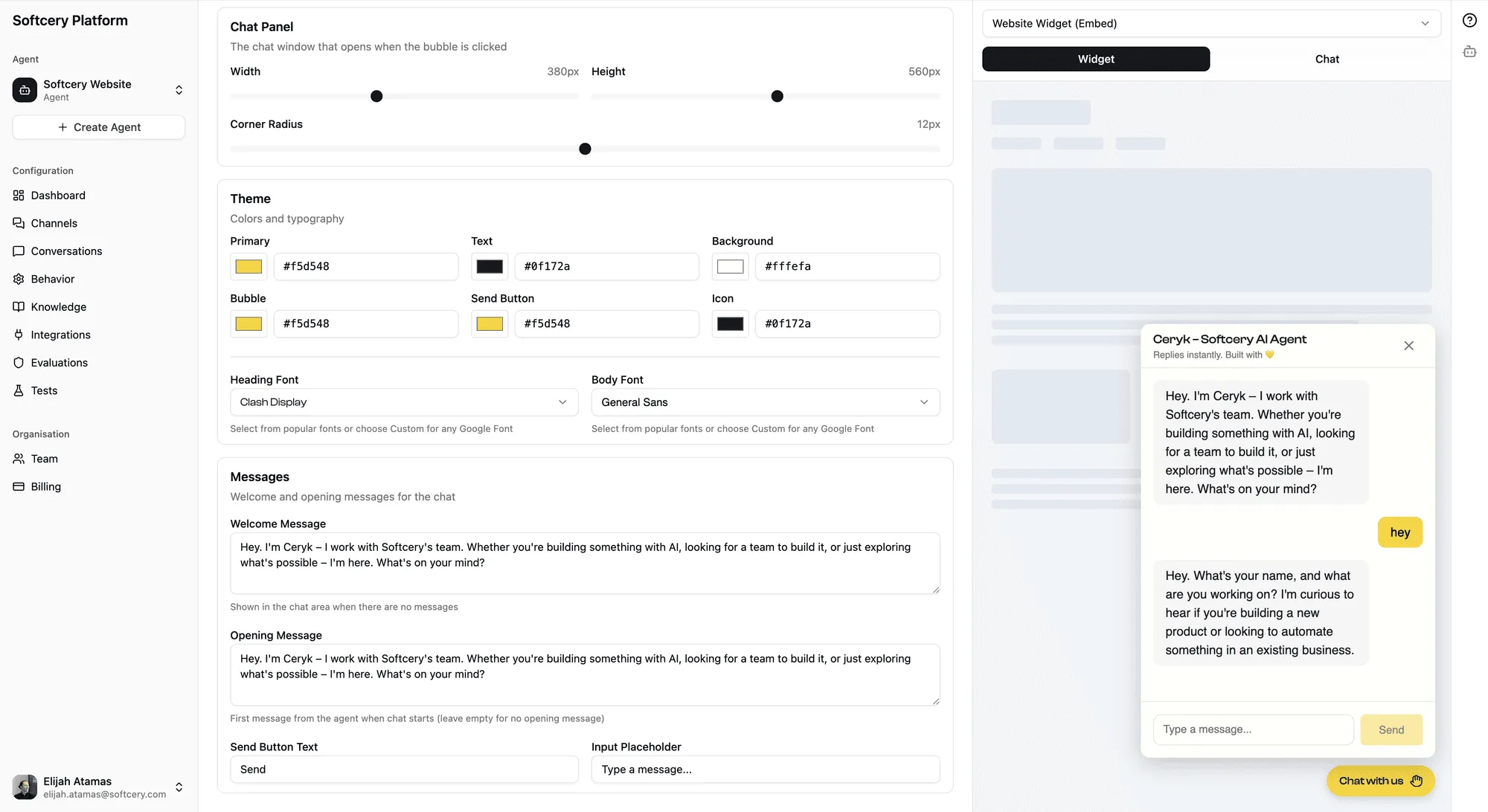
Colors
- Primary color – Main accent color for buttons, headers, and interactive elements
- Secondary color – Supporting color for backgrounds and secondary elements
- Accent color – Highlight color for emphasis
The platform automatically calculates contrast ratios based on color luminance to keep text readable against your chosen colors.
Typography
Choose from Google Fonts to match your brand typography. The font applies to all text in the chat interface.
Logo
Add your logo URL to display in the chat header. This appears alongside your agent’s name.
Header
Customize the header with:
- Title – The name that appears at the top of the chat (defaults to your agent’s name)
- Subtitle – A brief description shown below the title
Welcome Message
Set an opening message that appears before the user types anything. Use this to set expectations, introduce the agent, or prompt the user to ask a question.
Chat Bubble
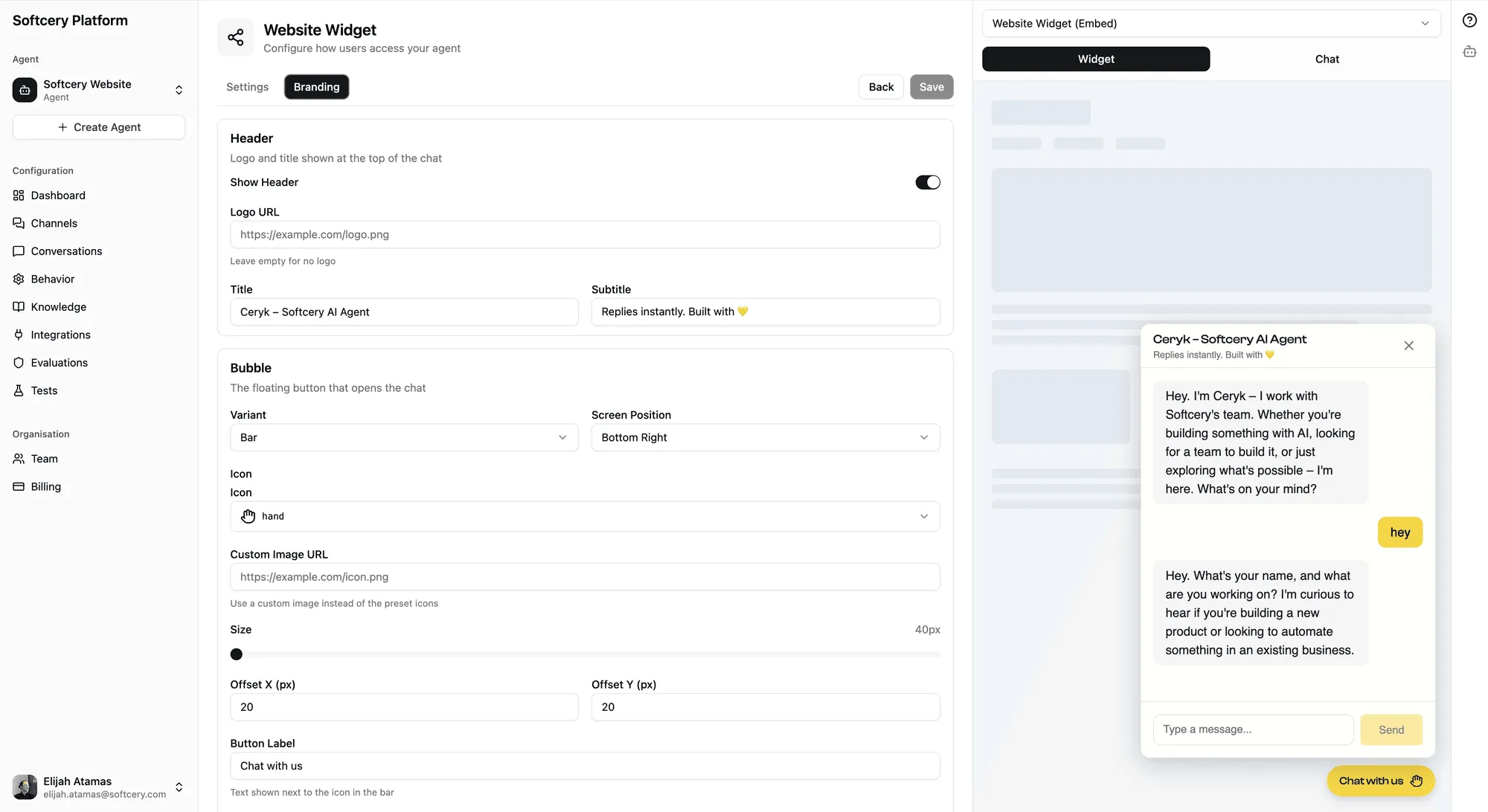
For embed channels, the chat bubble is the entry point on your website:
- Shape – Circle or bar (horizontal pill shape)
- Icon – Choose from 1,668 Lucide icons or use a custom image
- Size – Adjustable via slider
- Teaser text – Short text that appears next to the bubble (bar shape only)
Chat Panel
Control the dimensions of the chat panel:
- Width and Height – Set the panel size
- Border radius – Control corner rounding
Step Display
Control how much of the agent’s execution process is visible to end users:
None
Users see only the final response. No indication of what’s happening behind the scenes. Cleanest experience for production deployments where transparency isn’t needed.
Minimal
Users see step indicators during response generation – “Searching knowledge base,” “Calling Slack,” “Evaluating response” – without detailed content. Adds transparency without overwhelming the user.
Detailed
Full execution details visible to users. Knowledge chunks retrieved with relevance scores, tool call arguments and results, iteration-level information. Best for internal tools, debugging, or technical audiences who want to see how the agent works.
Password Protection
Link channels can be password-protected. When enabled:
- Users see a branded entry screen with the channel name and your primary color
- They enter the password to access the chat
- A session is created that lasts 30 days
- If you change the password, existing sessions continue until they expire – then users need the new password
Password management in the admin UI:
- Toggle protection on/off
- View the current password (read-only display)
- Copy the password to clipboard
- Regenerate a new random password
The password is verified using constant-time comparison to prevent timing attacks. Admin preview in the platform bypasses password protection through ownership verification – you don’t need the password to test your own agent.
Rate Limiting
Each channel has configurable rate limits to prevent abuse:
- Messages per minute – How many messages a single user can send per minute
- Messages per hour – How many messages a single user can send per hour
When a user hits a rate limit, the agent won’t respond until the window resets. This protects both your usage costs and the end-user experience from spam or automated abuse.
Admin Preview
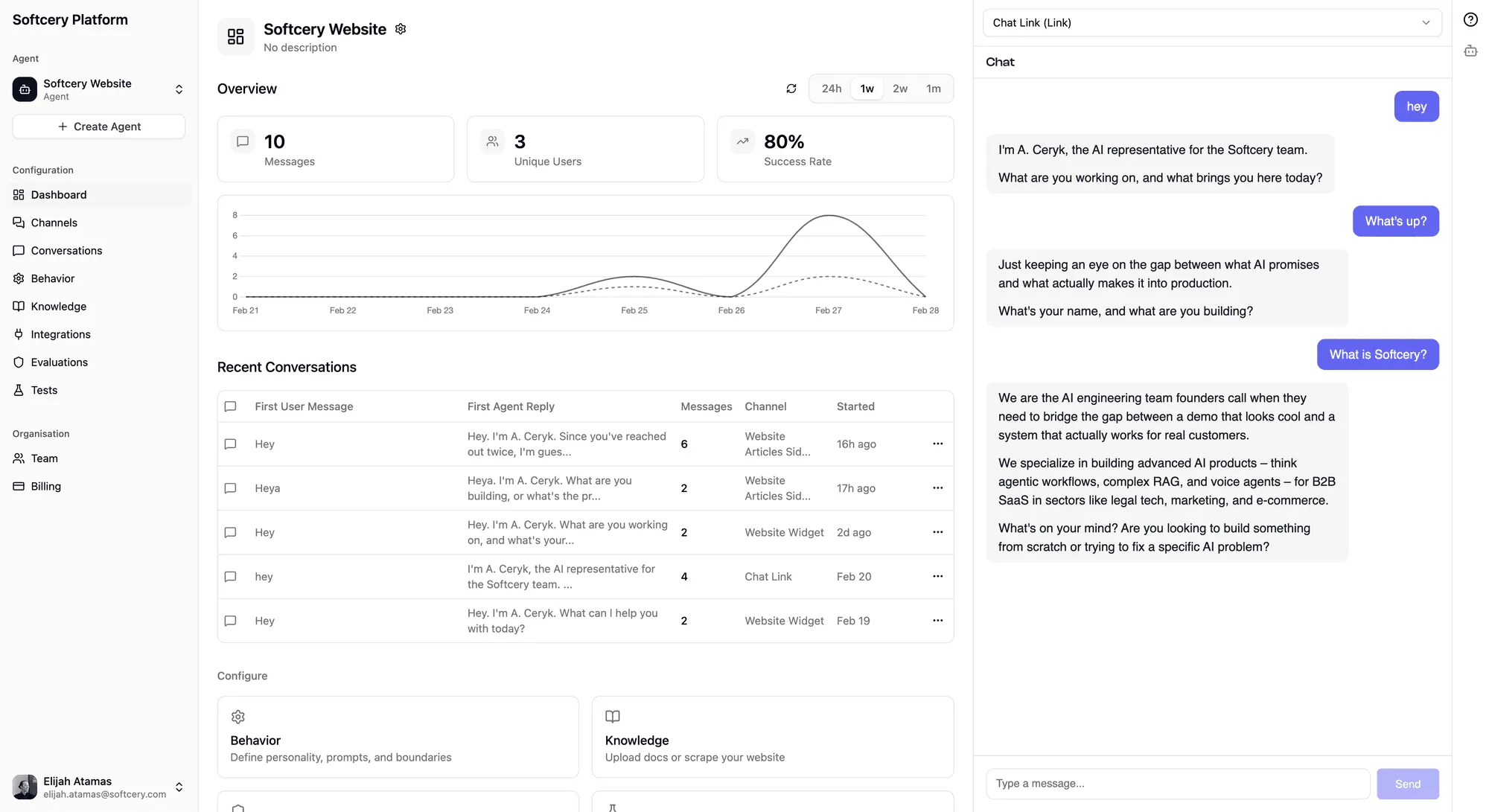
The admin portal includes a live preview panel that shows exactly what your users will see. It’s not a mockup – it’s the actual chat widget running against your real agent with real LLM responses and real knowledge retrieval.
The preview:
- Uses the actual loader script (true WYSIWYG)
- Shows branding changes in real-time
- Lets you select which channel to preview (enabled link channels)
- Bypasses password protection (you’re the owner)
- Runs real conversations through the full pipeline
Use the preview to test behavior changes, verify branding, and check step display settings before sharing with users.
Managing Channels
Creating a Channel
Click “Add Channel” and choose embed or link. The channel is created with sensible defaults – you can customize everything after creation.
Enabling/Disabling
Toggle channels on or off. Disabled channels stop serving responses but retain their configuration. The embed snippet stays valid but the widget won’t load; link URLs return an unavailable state.
Deleting
Removing a channel deletes it permanently, including all configuration and branding. Active sessions on the channel will stop working.
Channel Detail Page
Each channel has a detail page with three tabs:
- Install (embed only) – The code snippet to add to your website
- Settings – Channel name, rate limits, password protection, step display
- Branding – Colors, fonts, logo, header, bubble, panel configuration
Deployment Architecture
Channels are served through dedicated infrastructure:
- Embed widgets and chat pages are served from
c.platform.softcery.com - Each channel has a unique short ID in its URL
- The chat interface loads dynamically based on the channel’s configuration
- Branding is applied via CSS custom properties – colors, fonts, and sizes update without page reload
There’s no “deploy” button or draft/publish workflow. Agents are live immediately on enabled channels. Configuration changes take effect on the next conversation.
Tips
- Brand your default channel first. The auto-created link channel is great for testing, but add your colors and welcome message before sharing with anyone.
- Use password protection for beta testing. Share the password-protected link with a small group before opening up broadly. Review their conversations to catch issues.
- Set step display to “minimal” for customer-facing channels. Users appreciate seeing that something is happening (searching, thinking) without being overwhelmed by technical details.
- Create separate channels for different contexts. A support embed on your docs site can have different branding and welcome message than a sales embed on your landing page – even though they use the same agent.
- Test on your actual site. The admin preview shows you the experience, but embedding on your real site reveals styling conflicts, z-index issues, and positioning problems early.
- Use rate limits. Even for trusted channels, rate limits prevent unexpected costs from automated access or user abuse. Start with reasonable defaults (10/minute, 60/hour) and adjust.