
Add Your Website as a Knowledge Source
Last updated on February 27, 2026
Softcery PlatformAsk our AI advisor
A live voice session with the AI advisor that has this article, and years of our experience building production voice AI systems, behind it. Answers now, nothing to schedule.
Want a human instead?
Book a call with our engineersBuild and deploy reliable AI agents with the Softcery Platform.
Get startedYour website is the richest, most up-to-date source of information about your business. Product descriptions, documentation, pricing, team bios, blog posts, case studies – it’s all there. This guide shows you how to turn your website into an AI-searchable knowledge base in the Softcery Platform.
Choose Your Crawl Mode
The platform offers three modes for website ingestion. Which one you use depends on what you’re trying to capture.
Single Page – For Specific Content
Use this when you want content from one exact page.
Good for: A landing page, a specific blog post, a key FAQ page, an about page.
- Go to Knowledge → Add Source → Website
- Select Single page
- Enter the URL (e.g.,
https://acme.com/pricing) - Click Add
That’s it. The platform fetches that one page, extracts the content, and makes it available for retrieval.
Crawl Links – For a Section of Your Site
Use this when you want content from a section of your site and its linked pages.
Good for: Documentation hubs, blog sections, knowledge centers – anywhere you have a main page that links to subpages.
- Go to Knowledge → Add Source → Website
- Select Crawl links
- Enter the starting URL (e.g.,
https://docs.acme.com) - Set depth – how many link-levels to follow:
- Depth 1: Just the starting page and its direct links
- Depth 2: Starting page → linked pages → pages linked from those (covers most doc sites)
- Depth 3+: For deeply nested content structures
- Set max pages – cap on total pages crawled (e.g., 100)
- Click Add
The crawler follows links from your starting page, staying on the same hostname. It won’t jump to external sites.
Example: Starting at https://docs.acme.com with depth 2 and max 100 pages captures the docs landing page, every page linked from it, and every page linked from those – up to 100 pages total.
Sitemap – For Comprehensive Coverage
Use this when you want to capture your entire site (or a specific section) using your sitemap.
Good for: Full site ingestion, documentation sites with sitemaps, marketing sites where you want everything.
- Go to Knowledge → Add Source → Website
- Select Sitemap
- Enter your sitemap URL (e.g.,
https://acme.com/sitemap.xml) - Optionally, set a path filter to target specific sections (e.g.,
/docs/to only crawl pages under the docs path) - Set max pages if needed
- Click Add
The platform parses your sitemap XML, extracts all page URLs, sorts them by lastmod date (most recently modified first), applies your path filter if set, and fetches each page.
Why sitemap mode is powerful: Pages sorted by recency means if you set a max of 200 pages, you get the 200 most recently updated pages – the freshest content. This is better than crawling, which might miss pages buried deep in the link structure.
Sitemap indexes: If your sitemap URL points to a sitemap index (a sitemap of sitemaps), the platform handles it – it follows the index one level deep to find the actual page sitemaps.
What Happens After You Add a Source
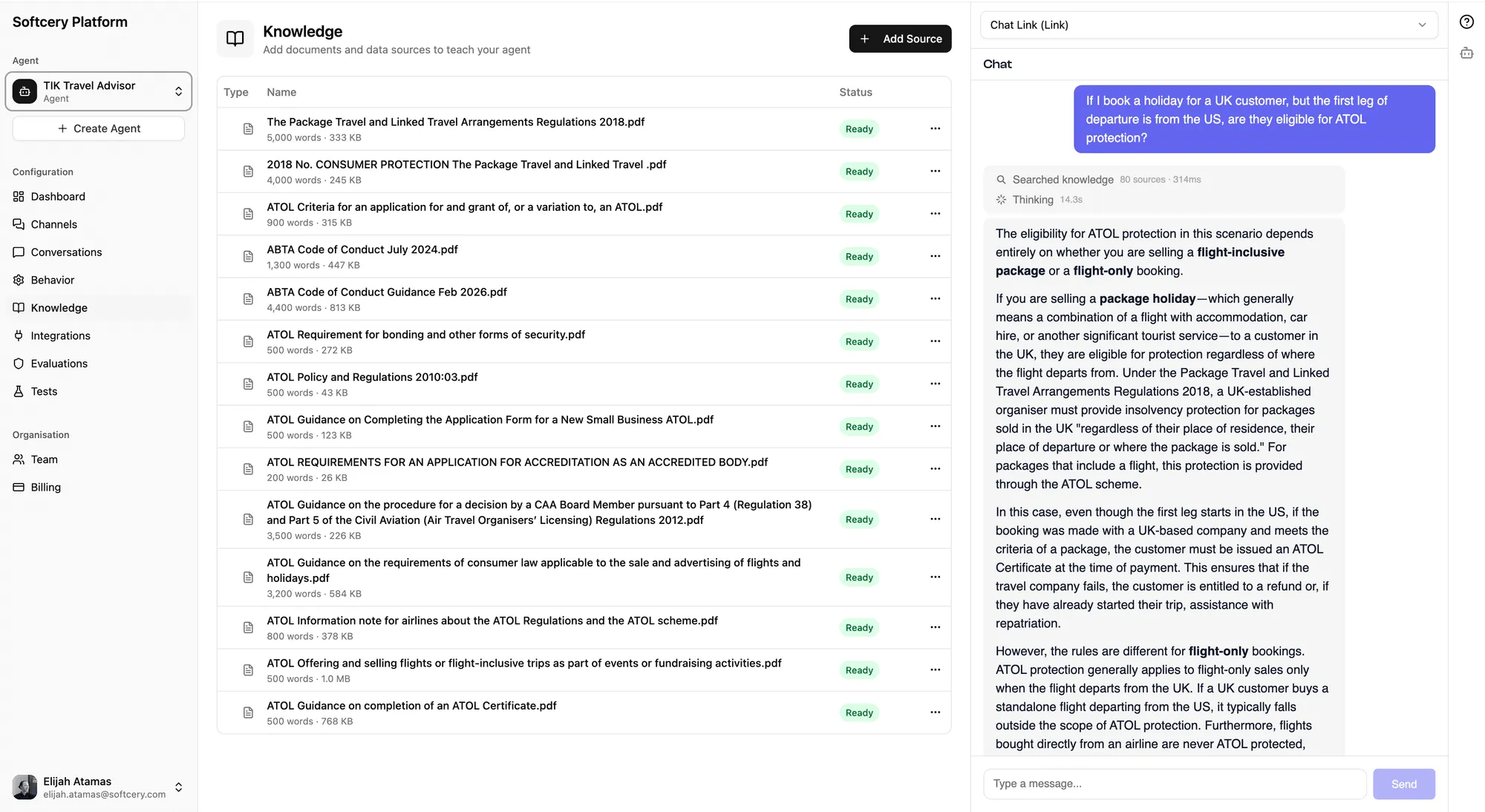
The source appears in your knowledge table with a “Pending” status. Processing happens in the background:
- Crawling – Pages are fetched and HTML is converted to clean markdown
- Chunking – Content is split into semantic chunks respecting headings, paragraphs, and sentence boundaries
- Embedding – Each chunk is converted to a vector representation
- Storing – Vectors are indexed for fast similarity search
Status progresses: Pending → Processing → Ready (or Failed if something went wrong).
Once “Ready,” expand the source row to see every URL that was successfully crawled.
Verifying Your Content
After processing completes:
-
Check the crawled URLs – Expand the source in the knowledge table. Every crawled URL is listed. Make sure the pages you expected are there.
-
Test with the preview – Open the admin preview and ask questions that your website content should answer. Check the inspection panel to verify the right chunks are being retrieved.
-
Look for gaps – If important content isn’t being retrieved, it might be on a page that wasn’t crawled, or the chunking might have split it in an unhelpful way. Consider adding that specific content as a separate text source.
Combining Multiple Website Sources
You’re not limited to one website source. Common patterns:
Documentation + Marketing site:
- Source 1: Sitemap of
docs.acme.com(max 500 pages) - Source 2: Crawl links from
acme.comwith depth 2 (max 50 pages)
Blog posts on specific topics:
- Source 1: Single page of your most important blog post
- Source 2: Crawl links from your blog category page
Multiple subdomains:
- Source 1: Crawl
docs.acme.com - Source 2: Crawl
support.acme.com - Source 3: Single page of
acme.com/pricing
Each source is crawled independently and all content ends up in the same searchable knowledge base.
Handling Common Issues
Empty or Incomplete Content
Cause: Your site uses JavaScript to render content (React, Next.js, Vue, Angular SPAs).
The crawler uses static HTML parsing. If your page content is loaded dynamically via JavaScript, the crawler sees an empty page or just the shell HTML.
Workaround: Export your content as static files (PDF, markdown) and upload them as file sources. Or use a static export/pre-render of your site if available.
Too Many Irrelevant Pages
Cause: Crawling captured pages you didn’t want (tag pages, author pages, pagination pages).
Fix: Use sitemap mode with a path filter to target specific sections. Or use a lower max pages count. Or add specific pages with single page mode instead of broad crawling.
Missing Deep Pages
Cause: Crawl depth wasn’t high enough, or the page wasn’t linked from any crawled page.
Fix: Increase crawl depth, add the specific page as a separate single-page source, or use sitemap mode which doesn’t depend on link structure.
Stale Content
Cause: Your website content has been updated since you added the source.
Fix: Delete the existing source and re-add it. The platform will recrawl with the current content. Scheduled auto-refresh is on the roadmap but not yet available.
Tips
- Start with sitemap mode if you have one. It’s the most reliable way to get comprehensive coverage. Find your sitemap at
yoursite.com/sitemap.xmloryoursite.com/robots.txt(which usually lists the sitemap location). - Use path filters for large sites. If your sitemap has 5,000 URLs but you only need the docs section, add a path filter like
/docs/to avoid ingesting your entire blog and marketing site. - Check robots.txt. If certain pages are blocked in robots.txt, the crawler respects those directives and won’t fetch blocked pages.
- Set reasonable max pages. More isn’t always better. 200 focused pages from your docs beat 2,000 pages that include every blog post, tag page, and team bio. More content = more chunks = more potential for irrelevant retrieval.
- Add instructions to website sources. Use the instructions field to tell the agent how to use this content: “This is our technical documentation. When answering technical questions, prefer information from these pages over other sources.”