
MCP Integrations
Last updated on February 27, 2026
Softcery PlatformAsk our AI advisor
A live voice session with the AI advisor that has this article, and years of our experience building production voice AI systems, behind it. Answers now, nothing to schedule.
Want a human instead?
Book a call with our engineersBuild and deploy reliable AI agents with the Softcery Platform.
Get startedA knowledge base gives your agent information. MCP integrations give your agent abilities.
MCP (Model Context Protocol) is an open standard that lets AI agents connect to external tools and services. Through MCP, your agent can look up customer data in a CRM, search the web, check project status in a task tracker, query analytics platforms, or pull information from any connected service – all within a conversation.
The Softcery platform supports MCP out of the box with a curated gallery of 25+ pre-configured integrations and the ability to add any MCP-compatible server.
What MCP Enables
Without MCP, your agent answers from its knowledge base. With MCP, your agent can:
- Look up live data – Check current customer information in Attio, current project status in Linear, current inventory in Shopify
- Search the web – Use Tavily or Exa to find current information beyond the knowledge base
- Access developer tools – Query GitHub for open issues, check Sentry for errors, look up documentation
- Read analytics – Pull product metrics from PostHog or Amplitude
- Manage workflows – Create tasks in Todoist, update records in Monday.com, post messages in Slack
The agent decides when to use tools based on the conversation. If a user asks something the knowledge base can answer, it uses the knowledge base. If the question requires live data, the agent calls the appropriate tool.
The Integration Gallery
Browse pre-configured integrations across eight categories:
Communication
- Slack – Send messages, manage channels, search conversations
CRM
- Attio – Manage contacts, companies, deals, and pipelines
- Clarify – Retrieve, create, and update CRM records
- Monday.com – Manage boards, items, and workflows
- PredictLeads – Discover company data and business signals for lead enrichment
Productivity
- Notion – Search, read, and update pages and databases
- Linear – Manage issues, projects, and cycles
- Todoist – Create, update, and manage tasks and projects
Developer
- GitHub – Search repos, manage issues, create pull requests
- Sentry – Access error tracking and performance data
- Supabase – Query databases and manage projects
- Vercel – Manage deployments and environment variables
- Cloudflare – Access Workers, analytics, and security features
Search & Data
- Exa – AI-powered semantic web search
- Tavily – Web search with AI-optimized results
- Context7 – Up-to-date programming documentation
- Apify – Web scraping and browser automation
- Explorium – Business data enrichment
- Parallel Search – AI-optimized web search
E-commerce
- Stripe – Payment data, customers, subscriptions
- PayPal – Transaction data and invoices
- Shopify – Products, orders, and customers
Analytics
- Amplitude – Product analytics and event data
- PostHog – Product analytics, feature flags, session recordings
- Langfuse – LLM observability and prompt management
Recruitment
- Homerun – Job listings, candidates, and hiring workflows (hosted by Softcery)
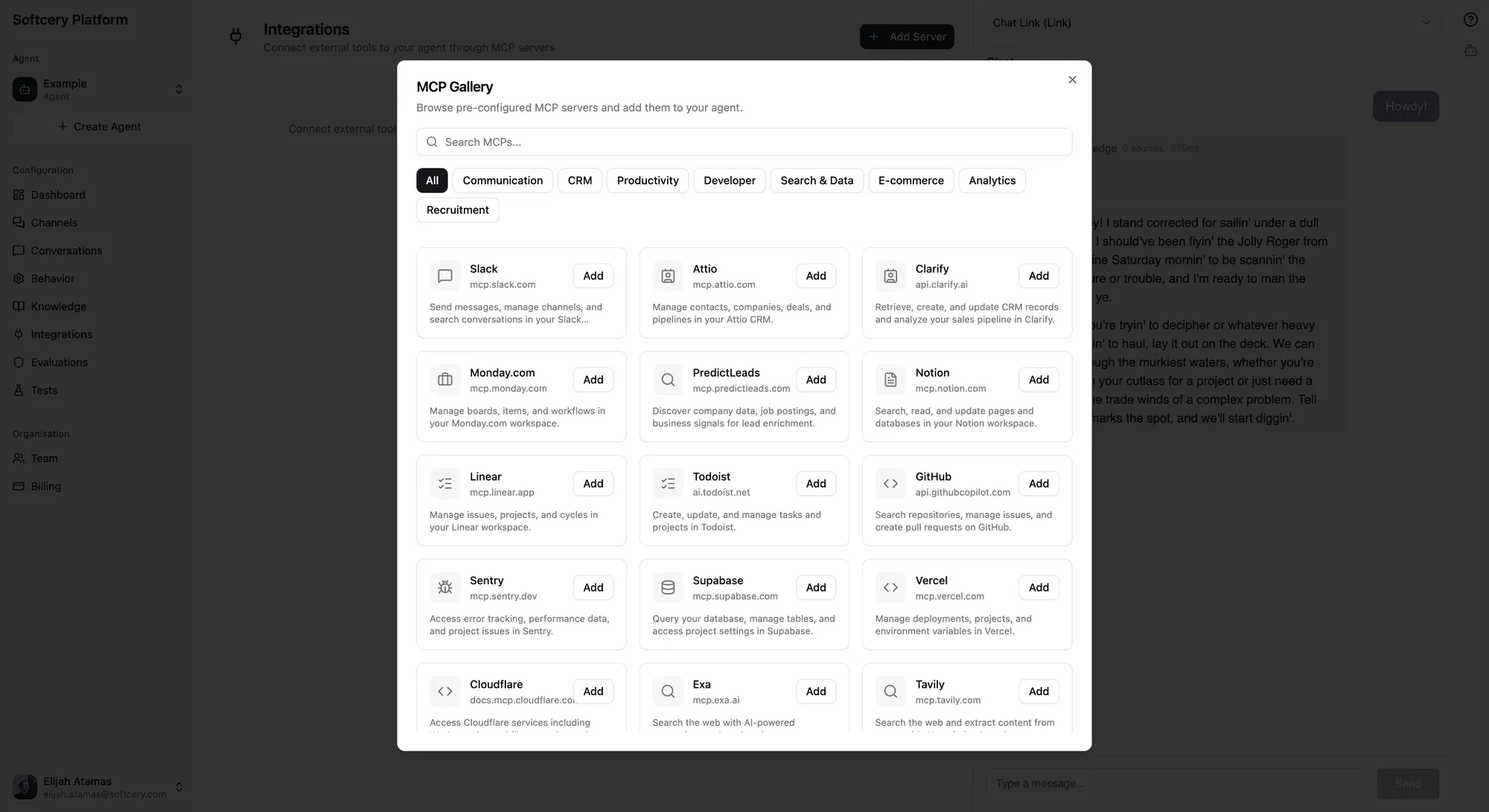
Each gallery entry pre-fills the configuration – URL, auth type, and setup instructions. Click “Add” and you’re most of the way there.
Authentication
Two authentication methods are supported:
API Key
The simpler method. You provide an API key and the platform includes it in every request to the MCP server. After adding the key, the platform automatically probes the server to discover available tools.
Gallery entries that use API keys include setup instructions for where to find your key (e.g., “Enter your Tavily API key from tavily.com”).
OAuth
For services that require user-level authentication. The platform handles the full OAuth authorization code flow with PKCE:
- You initiate the connection from the integrations page
- You’re redirected to the service to authorize access
- The platform receives the authorization code and exchanges it for tokens
- Tokens are stored securely and refreshed automatically at 50% lifetime
Some services (like Slack) require you to create a custom OAuth app and provide client credentials. The setup instructions in the gallery walk you through this. Others (like Notion, Linear, GitHub) support dynamic client registration and work with just a click.
After OAuth completes, the platform probes the server for available tools automatically.
Adding an Integration
From the Gallery
- Go to the Integrations page
- Click “Browse Gallery”
- Search or filter by category
- Click the integration you want – configuration is pre-filled
- For API key servers: enter your API key
- For OAuth servers: follow the setup instructions if needed, then click to authorize
Manual Setup
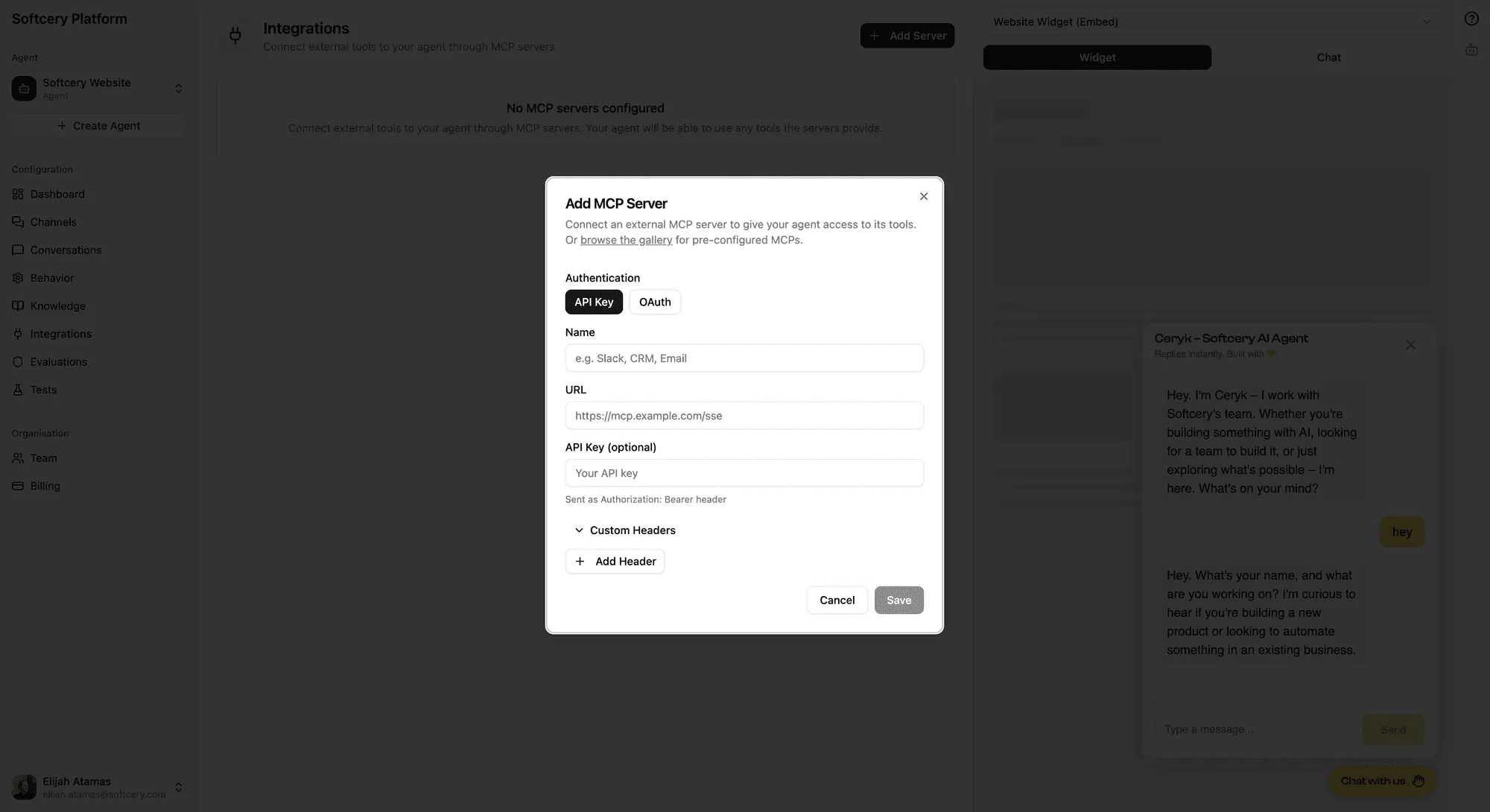
- Click “Add MCP” for a custom server
- Enter a name and the server URL (HTTPS required)
- Choose auth type (API key or OAuth)
- For API key: enter the key
- For OAuth: configure callback URL, optional client credentials, and scopes
- Save – the platform probes the server for tools
How Tools Work During Conversations
When your agent has MCP integrations enabled:
- The agent receives the user’s message along with the list of available tools from all connected servers
- The model decides whether to use any tools based on the conversation
- If tools are needed, the agent makes tool calls – potentially multiple in parallel
- Tool results are incorporated into the agent’s response
- The agent may make additional tool calls if needed (multi-step reasoning)
All of this is visible in the conversation inspection panel. Each iteration shows the tool calls made, their arguments, results, and timing.
Parallel Tool Execution
When the model requests multiple tool calls in a single step, they execute concurrently. This means if the agent needs data from both Attio and Linear to answer a question, both calls happen at the same time – faster than sequential execution.
Multi-Turn Tool Memory
Conversation history includes previous tool calls and their results. If the agent looked up a customer in Attio during the first message and the user asks a follow-up question about that customer, the agent remembers what it found – it doesn’t need to look it up again.
Managing Integrations
Connection Status
Each integration shows its status:
- Connected – Tools discovered successfully, ready to use
- Error – Connection or authentication failed
- Untested – Not yet probed for tools
You can probe any server manually to refresh its tool list or diagnose connection issues. For OAuth servers, a “Reconnect” action re-initiates the authorization flow.
Enabling/Disabling
Toggle integrations on or off without deleting them. A disabled integration keeps its configuration but its tools aren’t available to the agent during conversations.
Tool Count
Each connected integration shows how many tools it provides. This gives you a quick sense of what capabilities each integration adds.
Limits
Up to 10 MCP servers per agent. This is a practical limit – too many tools can confuse the model about which tool to use for which purpose. Focused, relevant integrations produce better results than having every possible tool available.
Platform-Hosted Servers
Some integrations are hosted by Softcery directly, indicated by a “Hosted by Softcery” badge in the gallery. Currently this includes the Homerun ATS integration, which runs on Softcery’s MCP gateway infrastructure.
Platform-hosted servers offer the same MCP interface but are managed and maintained by Softcery, with no external infrastructure dependencies for the user.
Tips
- Start with what your users ask about. If users frequently ask questions your knowledge base can’t answer (real-time data, account-specific information), that’s where an MCP integration adds the most value.
- Don’t add everything. More tools doesn’t mean a better agent. Each tool the model has access to is another decision point. Focused agents with 2–3 relevant integrations outperform agents with 10 integrations they rarely use.
- Check the inspection panel. After conversations that involve tool calls, review the inspection panel to see what tools were called, with what arguments, and what results came back. This helps you verify the agent is using tools correctly.
- Use web search for freshness. If your knowledge base might become outdated, add a web search integration (Tavily or Exa) as a fallback. The agent can search the web when the knowledge base doesn’t have a good answer.
- Test OAuth flows. OAuth integrations require the authorization flow to complete successfully. Test the connection after setting up to make sure tokens are acquired and tools are discovered.